 Give an exam Give an examMinimum version: FirstClass 8.3 Audience: Teachers Experience:  FirstClass applications used:
 Summary SummaryLooking for an easier way to give exams? Give your exams online using a FirstClass conference. Using conference permissions, you have the same control over the exam as you would in a classroom. You control what students see, when they see it, and for how long.
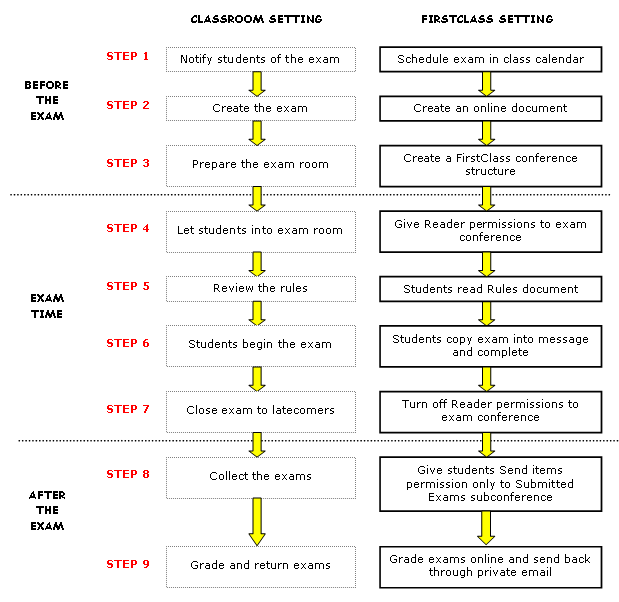
This flowchart compares how you traditionally give an exam to how you would do it in FirstClass.
 Example ExampleMadelyn Fraser teaches a Grade 12 English course at Avalon Academy. The course work includes a two hour online mid-term exam.
STEP 1: Notify students of the exam
Madelyn uses a FirstClass class calendar to notify students of exams and other important dates. This way students always know what is coming up without having to be reminded.
Madelyn schedules the exam in the class calendar.
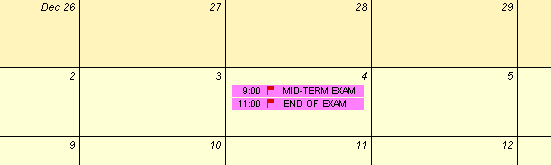 Madelyn also creates an end-of-exam warning to notify students when there are only 15 minutes left before the end of the exam. She does this by creating a calendar event called End of Exam, scheduled to start at the end of the exam time. She enters each student's name on the Scheduling tab and sets a Reminder for 15 minutes before the event. 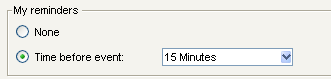 STEP 2: Create the exam
Madelyn creates the exam in her Documents folder. Until the exam day, she can edit and update it whenever she wants, from any location.
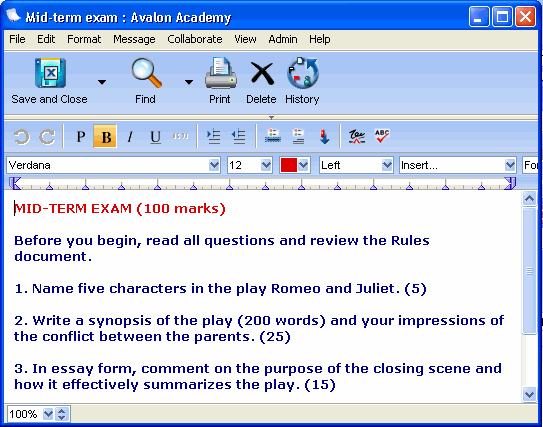 When she is ready, she copies and pastes it into the Mid term exam document.  Tip TipAnother option for Madelyn is to first prepare the exam room, and then create the Mid-term exam document. This way she doesn't have to copy and paste. Or, she could drag the exam document into the Examinations conference when it is ready.
STEP 3: Prepare the exam room
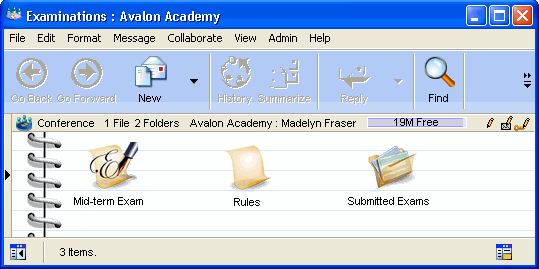
Madelyn creates an "exam room" by creating an Examinations conference containing the following:
• a Mid-term exam subconference where students can access the exam
• a Submitted Exams subconference where students hand in the exam
• a Rules document outlining the rules of the exam.
 STEP 4: Let students into the exam room
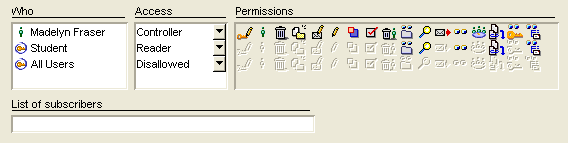
On the day of the exam, Madelyn lets students open the exam by assigning Reader access to the Examinations conference.
 STEP 5: Review the rules
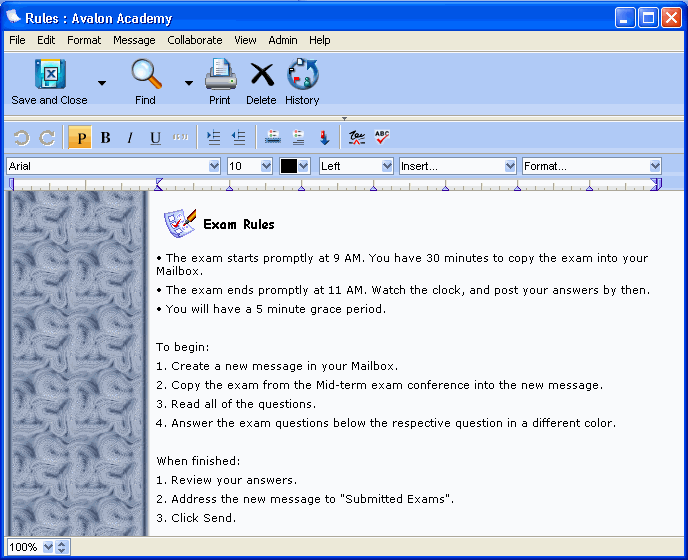
When students first open the conference, a Rules document is set to automatically open. Students cannot complain that they were unaware of or missed any instructions because all instructions are posted here for everyone to see, just as if they were posted on the board in their classroom.
 STEP 6: Students begin the exam
At 9 AM, Madelyn lets students open the exam. She gives students access to the exam by providing Reader access to the Mid-term Exam subconference. Students copy the exam content into a FirstClass message and complete the exam online.
STEP 7: Close exam to latecomers
At 9:30 AM, Madelyn "closes the door" to latecomers by removing access to the Mid-term Exam subconference. Any students who have not already copied the exam questions are considered absent.
 STEP 8: Collect the exams
Madelyn uses permissions as an easy way for students to submit their exams privately. At the beginning of the exam, Madelyn also gave students the Send items permission to the Submitted Exams conference.
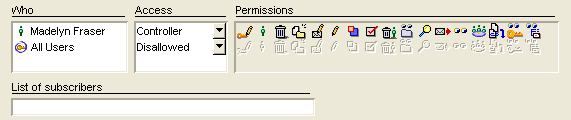
This is what the Write-Only permission looks like for the Submitted Exams conference.
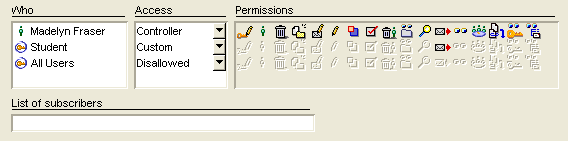 At 11 AM the exam is over and by 11:05 AM, all students must submit their exams by addressing their messages to the Submitted Exams conference. Access to the Submitted Exams conference is removed at 11:05 AM by making all users Disallowed. Any students who missed the entry deadline must send their exams to her directly and be assessed a late penalty. She stores these late exams in a subconference within Submitted Exams called Late Submissions. Since each message includes the date and time of receipt, she can see at a glance how late the exams are.
STEP 9: Grade and return the exams
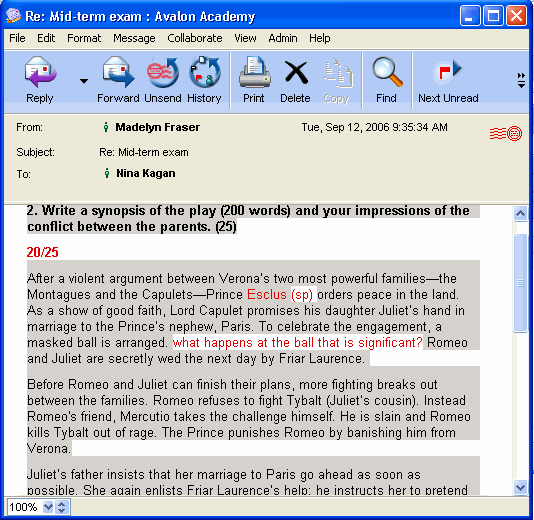
Madelyn now has all of the exams in one spot. She doesn't need to carry a stack of papers home to grade. Whether she is at home or at school, she can log in and review all of the exams. She grades each exam by creating a reply message addressed to the student and adding comments or grades to each question.
 Variations Variations• Madelyn may prefer to return hard copies after all. She prints each exam, either before she corrects it or afterwards.
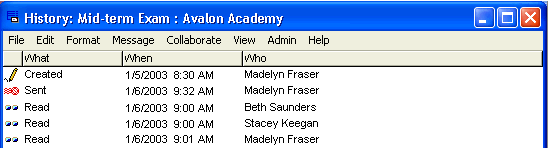
• If Madelyn creates the exam as a message instead of a FirstClass document, she can check message history when she closes the exam to latecomers, so she knows immediately who has started the exam and who is absent.
This is what she will see when she checks message history.
 • If preferred, Madelyn can give students Contributor access to the Submitted Exams conference for the duration of the exam (or just the last fifteen minutes or so). Then she can select the Messages require approval checkbox on the Permissions form. This way, students can see that their exam was received, but cannot open it or any other exam.
ConsiderationsYou can administer the exam in one of two ways - in a lab setting or from a remote location. If students are in remote locations, you will need to consider:
• whether they may chat with each other during the exam
• whether all students have access to a computer
• how students will ask questions
• what to do if a student accidentally deletes a question
• what to do if a student encounters a power failure or client crash. | ||
